
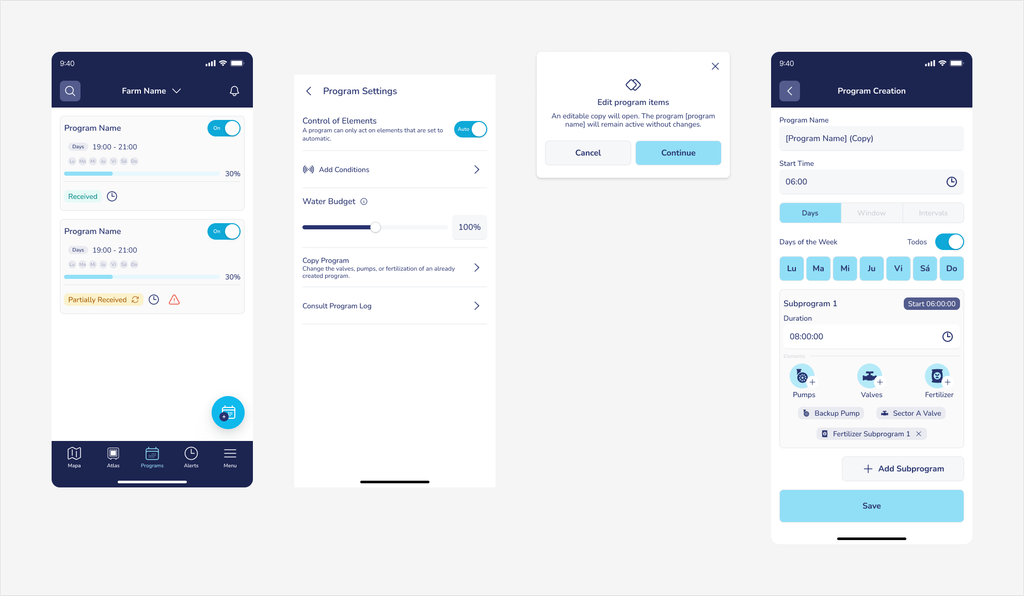
The Copy Program feature allows you to create an editable copy of an existing irrigation program. It is useful when you want to reuse a program's configuration while only changing the assigned elements: valves, pumps, or fertilizer dosing. The option is labelled in the interface as: "Change the valves, pumps or fertilizer of the program".
The original program remains active and unchanged throughout the process, even if it is running at the time of copying.
Tip: Use “Copy Program” when you want to modify the elements of a program (for example, to remove or add a new valve, or to add a new subprogram). Use “Edit Program” when you want to correct or adjust the program in terms of start time and duration.
How to access#
The entry point varies slightly by platform, but the behaviour is identical:
| Platform | Where to find the option |
|---|---|
| APP (mobile) | Program detail view → ⋮ menu (three dots, top-right corner) → Program settings → Copy program |
| WEB | Program detail view → side panel → Copy program option (right chevron) |
What is copied and what is not#
| Element | Copied? | Note |
|---|---|---|
| Program name | ✅ Yes | Pre-filled as [Original name] (Copy). The user can edit it. |
| Program type | ⛔ Not editable | Locked to the original's type. To change it, create a new program from scratch. |
| Schedule (days, time, duration/volume) | ✅ Yes | Editable in the form. |
| Actuators (valves, pumps, fertilizer) | ✅ Yes | Editable. May be left empty if no starts are available. |
| Water Budget | ✅ Yes | Editable in the form. |
| Conditioners | ❌ No | Not transferred to the new program. Must be added manually. |
Copy process: dialogs before the form#
When you tap Copy program, the app checks the program's state and shows one of the following dialogs before opening the form:
Modal A — Standard case (and program running)#
Shown when the program is in a normal state or while it is running and has no active conditioners or start availability issues.
Edit program elements
An editable copy will be opened. The program [program name] will remain active without changes.[Cancel] [Continue]
If the program is running at that moment, the copy is created and the original program continues running without interruption.
Modal B — Elements without available starts#
Appears when one or more of the program's elements (valves, pumps) do not have enough available starts. This does not block the copy: the user decides whether to continue or cancel.
Some elements do not have enough available starts
[List of affected elements]
The program will be copied with those positions empty. You can assign other elements from the copied program's settings.[Cancel] [Continue]
If you tap Continue, the form opens with those actuator positions empty. You can assign them directly from the edit screen.
Modal C — Program with active conditioners#
Shown when the program has one or more conditioners configured. Conditioners are not transferred to the copy.
This program has active conditioners
An editable copy of the program will be created. Conditioners will not be copied to the new program. You will need to add them again if you need them once removed from the original program.[Cancel] [Continue]
The copy form#
After confirming any of the dialogs above, the Copy program screen opens (on WEB: breadcrumb Home › Programs › Copy) with all the original program's data pre-loaded. From here you can edit:
- Name — pre-filled as [Program name] (Copy). Change it to easily identify it in the list.
- Schedule — days of the week, start time, duration or volume.
- Actuators — valves, pumps, and fertilizer dosing. If any were left empty due to lack of starts, assign them here.
- Water Budget and other program parameters.
The program type is locked and cannot be changed. If you need a different type, create a new program from scratch.
Saving without making changes#
If you tap Save without modifying any field, a warning appears before proceeding:
You have not made any changes.
You are about to save an exact copy of [Original program name]. If you wanted to make changes, cancel and modify the program before saving.[Cancel] [Continue]
If you confirm, an exact copy of the original program is created.
Result: success modal#
If the copy is created successfully, the system takes you to the program list and shows the following modal:
Program copied successfully.
The new program is ready and enabled.
The original program [Original program name] is still enabled. Do you want to disable or delete it?[Back to programs] [Go to original program]
From this modal you can return to the list or go to the original program to disable or delete it if you no longer need it.
If the creation fails, an error snackbar is shown and no program is created. The original program is not affected.
Could not copy the program. Please try again.