
Coming soon: 2026 July
A sector is a hydrological and agronomic management unit on which SPHERAG applies functionality to optimise water use and increase the profitability of the farm. It is drawn as a polygon on the map, but functionally it represents an area of the farm that is irrigated independently, delimited by a set of irrigation elements (valves, actuators, drippers…) that are controlled as a single unit.
Grouping land into sectors follows an agronomic and technical logic: homogeneous areas are grouped according to crop type (each crop has specific water requirements), soil type (texture determines water-holding capacity), topography, irrigation system capacity (flow or pressure limitations) and irrigation type. Each sector also corresponds to one part of a sequential program.
In this guide you will learn how to create a sector by drawing it on the map, complete its agronomic information, associate the farm elements with it and manage it from its detail view.
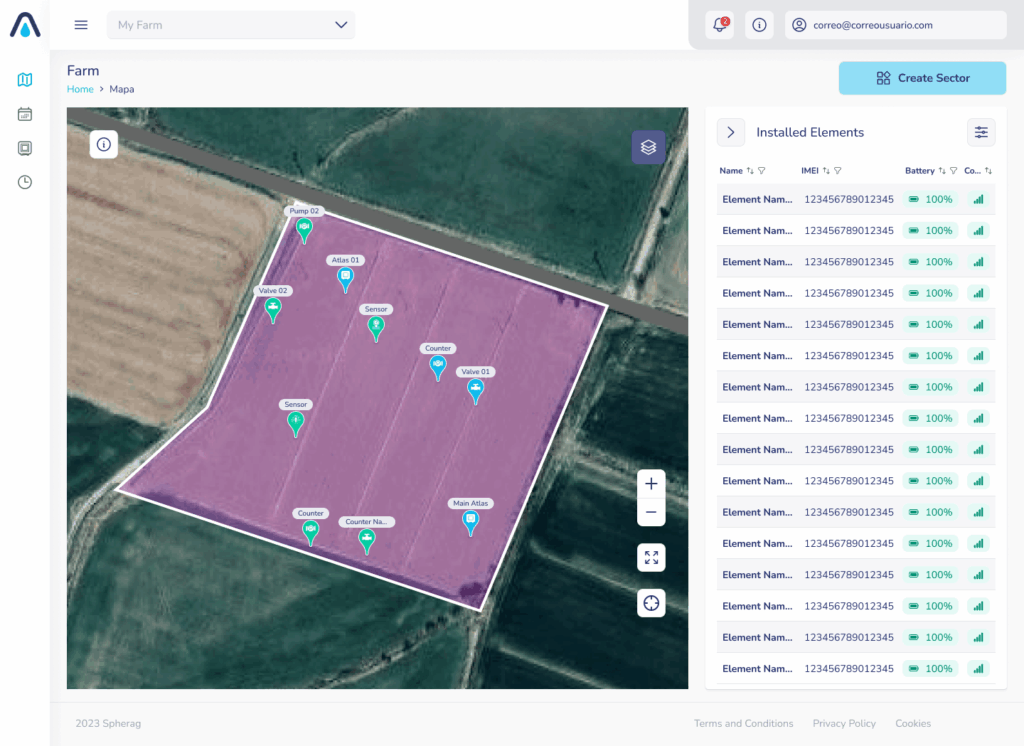
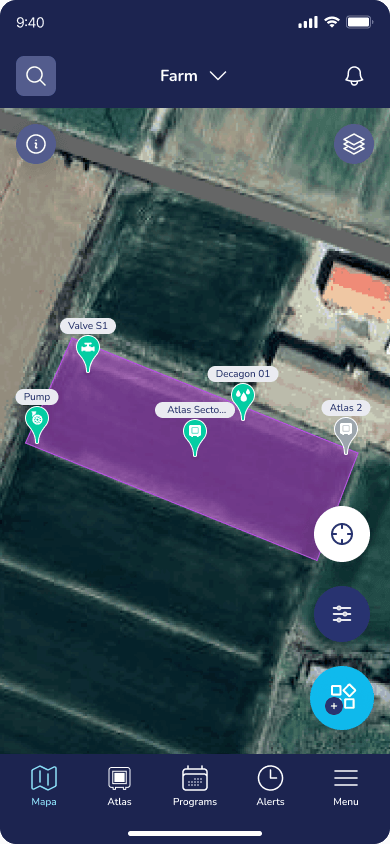
What is a sector?#
A sector is a specific area of the farm that is irrigated independently. It is delimited by drawing a polygon on the map, and the irrigation elements that control it are associated with it. From there, SPHERAG automatically calculates its surface area in hectares and lets you record the agronomic data (crop, soil and irrigation type) that will be used, among other things, to calculate the water volume per sector.
Elements associated with a sector#
Different farm elements can be associated with a sector. Some are specific to the sector and others are shared between several sectors:
- Sector valve (specific to the sector): one or more valves that belong solely to this sector. The most common case is to have a single valve per sector. The sector will animate when this valve (or valves) is open.
- Master valve (shared): can be associated with more than one sector.
- Pump (shared): it does not live inside the sector; it is associated to obtain reports or other data. There may be several pumps if the farm has different water supply points. When you associate a pump with the sector, it becomes linked to that sector’s valves.
- Flowmeter (shared): you can associate a sector flowmeter or the farm’s general flowmeter. Normally the farm has a single general flowmeter for all sectors. When you associate a flowmeter with the sector, it becomes linked to that sector’s valves.
- Fertilizer (shared): it can have a mixer associated with it.
- Sensors (shared): it will soon be possible to associate sensors with the sector.
- Digital inputs: they can be managed from the sector and associated with actuators 1:1.
Note on digital inputs. A digital input can be associated with 1 sector valve or one pump within each sector. If it is associated with the sector without selecting any actuator, the digital input is left "unassigned" (manual control, with no actuator automation). Each actuator can have at most one digital input associated with it within the same sector.
Create a sector#
Creating a sector starts from the main farm map and is completed through a multi-step form in which you shape the sector and add the information that identifies it.
- On the main farm map, click the "Create sector" button.
Draw the sector on the map#
A screen will open with a map centred on your farm’s location.
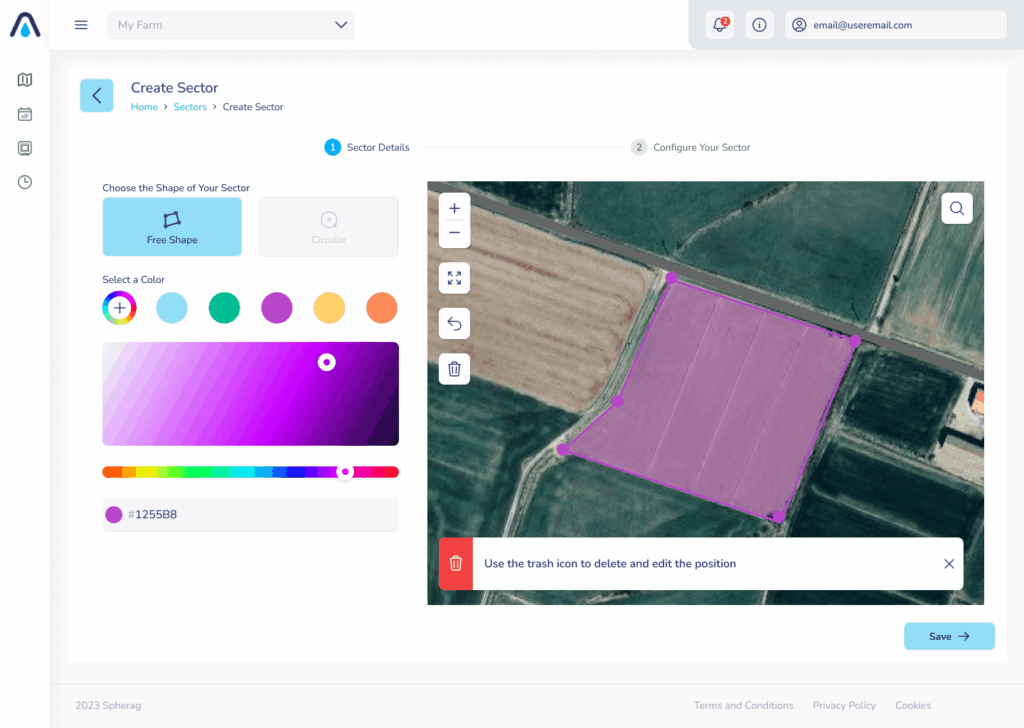
- Choose how you want to draw the sector:
- Custom drawing: draw the polygon that delimits the sector yourself.
- Circular shape: create a circle-shaped sector.
- Draw the sector on the map. Once you finish drawing, SPHERAG will automatically calculate the sector’s hectares and show you the result.
Sector name and colour#
With the sector drawn, complete its basic details:
- Enter the Sector name.
- Select the Sector colour. This colour will identify the sector on the map.
Crop type#
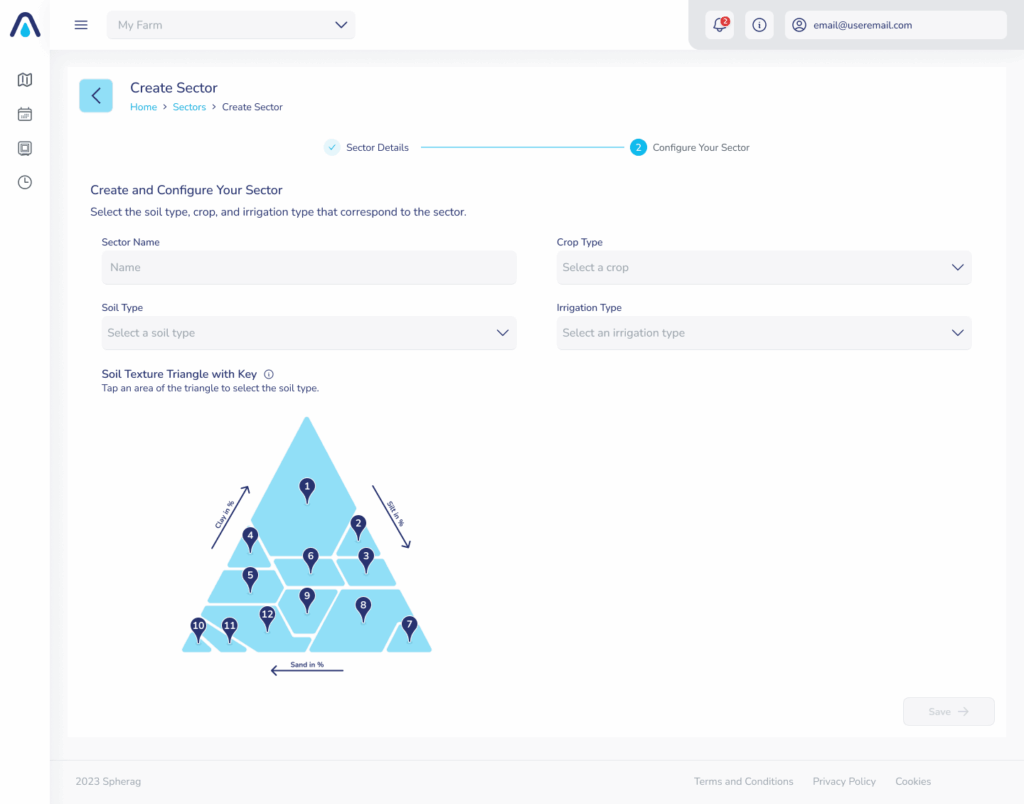
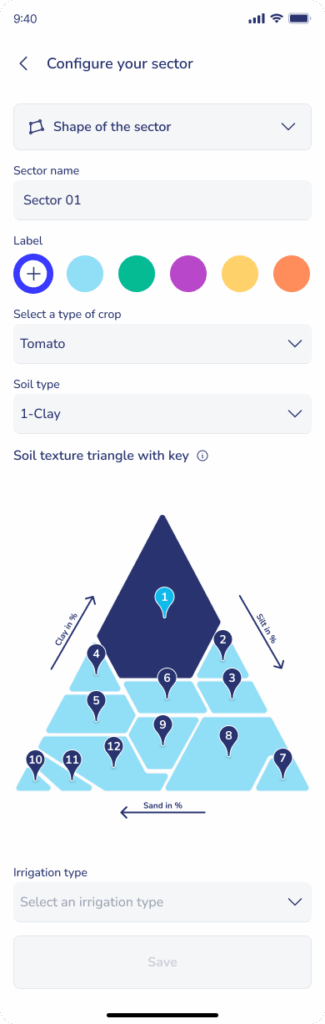
Next, enter the sector’s agronomic values. First, select the crop type from the identified and saved types.
Soil type#
Select the sector’s soil type. The options follow the soil texture triangle:
- Sandy
- Loam
- Clay
- Clay loam
- Sandy loam
- Loamy sand
- Sandy clay
- Sandy clay loam
- Silt
- Silty clay
- Silty clay loam
- Silt loam
Irrigation type#
Finally, select the sector’s irrigation type. When you choose an option from the list, the corresponding additional fields will appear. All fields are mandatory. The nominal flow rates you enter here are relevant for calculating the water volume per sector.
- No irrigation: has no additional fields.
- Surface / furrows: nominal inlet flow per intake or furrow, number of simultaneous furrows and furrow length.
- Sprinkler: nominal sprinkler flow, spacing/separation between sprinklers and radius.
- Micro-sprinkler: nominal nozzle flow and total emitters.
- Drip: flow per dripper, drip lines per row, distance between rows and number of drippers per metre of pipe.
- Hose reels: nominal flow.
- Center pivot: nominal flow and total length (radius).
- Linear pivot: nominal flow and total length.
Save the sector#
- Once you have completed all the fields, click "Save".
- The sector will be shown on the map and you will see a success message indicating the next steps.
Configure the sector: add elements#
Once created, the sector is shown empty and lets you add the elements you want to associate with it. The recommended order is actuators → digital input → sensors, since the digital input is associated with the actuators that have already been added to the sector.
Sector valve#
The most common option is to add a sector valve, which will be unique to that sector (unless it is a master valve). Even so, you can add more than one valve. Each sector valve can have a verification digital input associated with it at sector level.
Master valve#
You can select one or more master valves, which are shared between sectors.
Pump#
You can select one or more pumps, shared between sectors. Each pump can have a different verification digital input associated with it for each sector it belongs to.
Digital input#
After adding the previous actuators, you can add one or more digital inputs to the sector. For each one:
- Associate an existing digital input on the farm.
- Associate 1 actuator from the sector.
Note. If you do not associate any actuator, the digital input is left "unassigned" (manual control case, with no actuator automation). Remember that each actuator can have at most one digital input associated with it within the same sector.
Flowmeter#
You can select one or more flowmeters; they are not unique per sector. The usual approach is to associate the farm’s general flowmeter.
Fertilizer and mixer#
You can select one or more fertilizers, shared between sectors. If you need it, you can associate a mixer with a fertilizer to stir the fertilizer before and during irrigation.
Sector detail view#
When you access a sector you will see its detail view, organised into tabs. From the header you can go back and open the actions menu (⋮ icon, top right corner) to edit or delete.
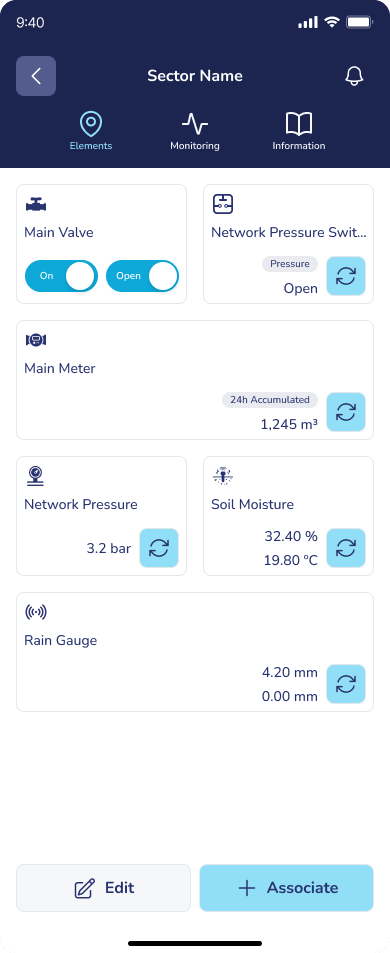
On the Elements tab, the sector’s configuration is shown as "cards".
Actuators display a Manual / Auto selector to change their operating mode. If a group has no associated elements, an empty state will be shown inviting you to add them (for example, "No associated sensors. Add sensors to the sector").
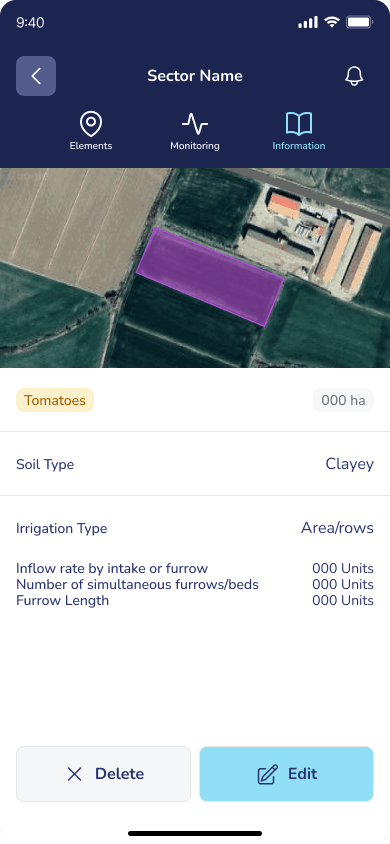
The Information tab gathers the sector’s data (name, hectares, crop, soil and irrigation type).
Edit the sector’s elements#
From the sector’s elements section you can add and edit the different associated elements.
Elements are edited through a multi-selector in which you select the elements you want to unlink from the sector.
Note. To delete an element from the farm, you must first unlink it from the sector. Once unlinked, you will be able to delete it.
Delete a sector#
- Access the sector you want to delete.
- Open the actions menu (⋮) and click "Delete".
- Confirm the action in the pop-up window to continue.